
How to Screenshot and Screen Record on a Mac: A Step-by-Step Guide
As a Mac user, taking screenshots and screen recordings is a vital skill, whether you’re a graphic designer, music producer, photographer, or video editor. This guide will walk you through the simple steps to capture your screen effectively.
Taking Screenshots
Using Keyboard Shortcuts
- Capture the Entire Screen: Press `Shift-Command-3`. The screenshot will be saved to your desktop.
- Capture a Portion of the Screen: Press `Shift-Command-4`, then drag to select the area you want to capture.
- Capture a Window: Press `Shift-Command-4`, then press the Space bar. Click the window you want to capture.
- Capture the Touch Bar: Press `Shift-Command-6`.
Using the Screenshot Toolbar
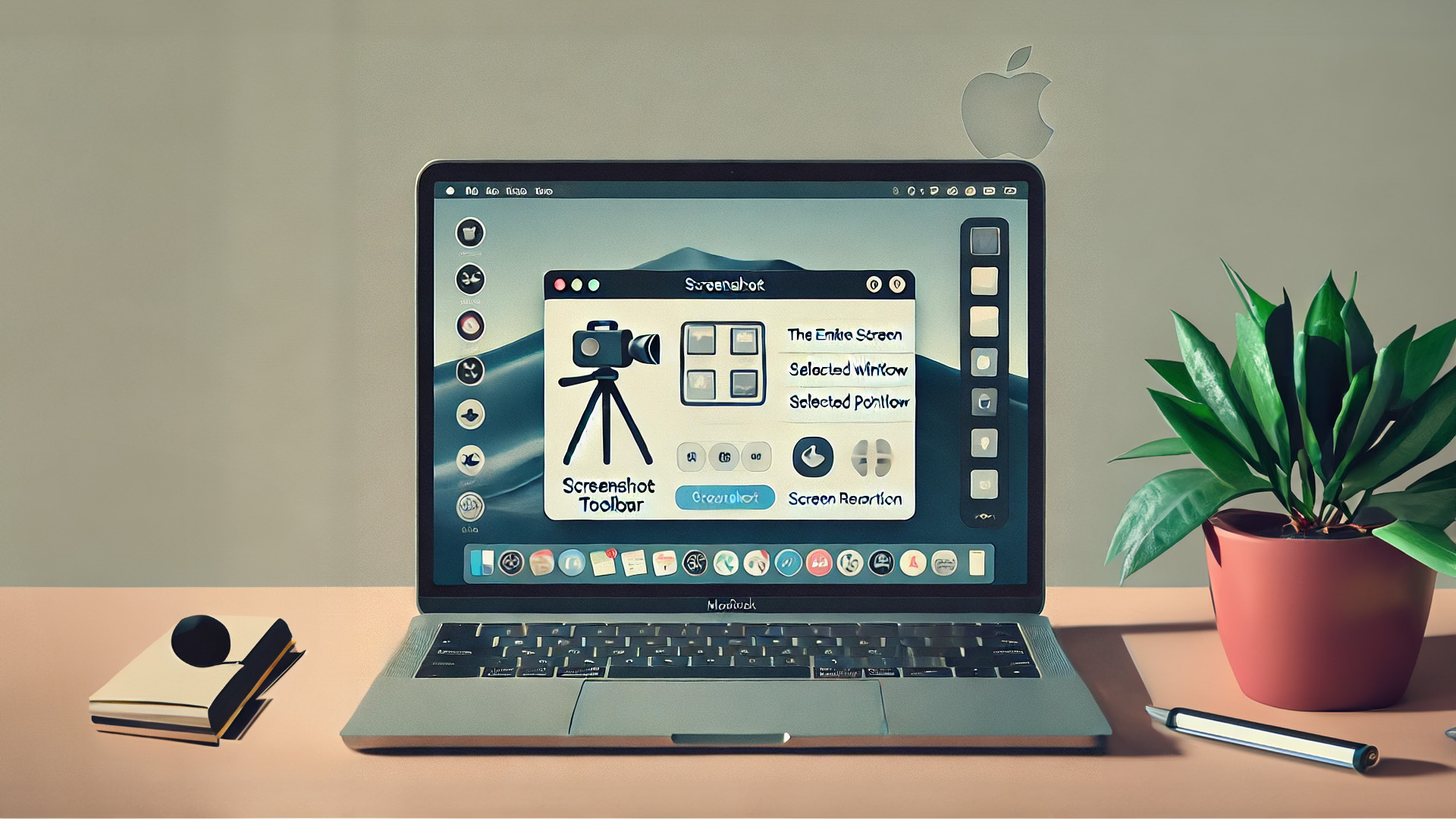
- Press `Shift-Command-5` to open the Screenshot toolbar.
- Select one of the on-screen control options:
– Capture Entire Screen
– Capture Selected Window
– Capture Selected Portion - Click the desired option, then click Capture.
Screen Recording on Your Mac
Using the Screenshot Toolbar
- Press `Shift-Command-5` to open the Screenshot toolbar.
- Select either “Record Entire Screen” or “Record Selected Portion”.
- Click Record to start recording. To stop, click the Stop button in the menu bar.
Options and Settings
Timer: Set a timer delay for screenshots or recordings.
Show Mouse Clicks: Highlight mouse clicks during recordings.
Save Location: Choose where your screenshots and recordings are saved.
Tips for Efficient Screen Capturing
- Use Floating Thumbnails: After taking a screenshot, a thumbnail appears in the corner. Click it to quickly edit or share.
- Customize Shortcuts**: Go to `System Preferences > Keyboard > Shortcuts` to customize screenshot shortcuts.
For a detailed guide, visit the Apple Support page
Mastering these techniques will streamline your workflow and enhance your productivity on your Mac. Happy creating!